
Dual-booted into Linux for my PC!
I was initially supposed to start this project next weekend, but I had enough time last weekend to figure out making a partition with my current PC drive and then installing a Linux distro on it. So, tada! I’m writing this post while logged in on my Linux PC, too. Here’s the initial specs from my fastfetch:
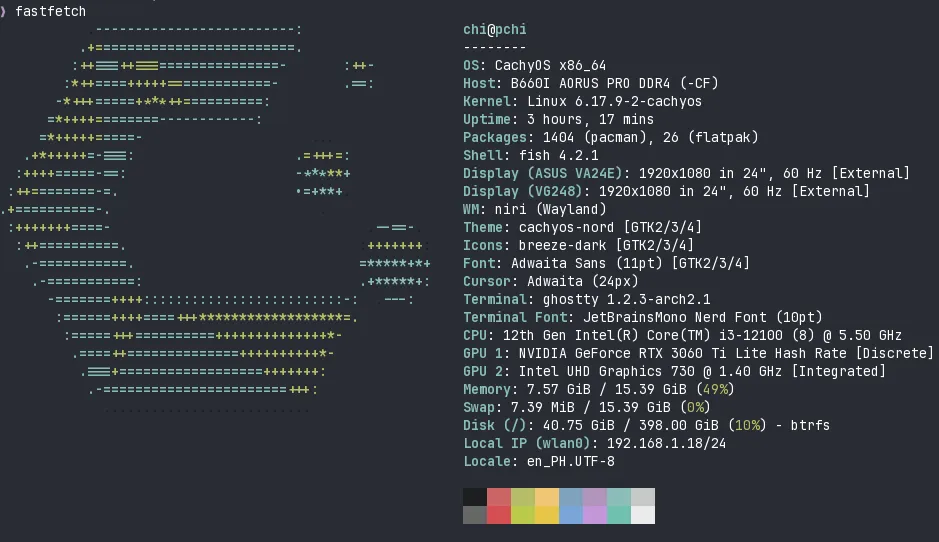
I dunno if there’s any benefit to also pasting the specs from the above image here, but I guess for the sake of Ctrl/Cmd+Fing stuff, here it is:
           .-------------------------:                    chi@pchi
          .+=========================.                    --------
         :++===++==================-       :++-           OS: CachyOS x86_64
        :*++====+++++=============-        .==:           Host: B660I AORUS PRO DDR4 (-CF)
       -*+++=====+***++==========:                        Kernel: Linux 6.17.9-2-cachyos
      =*++++========------------:                         Uptime: 3 hours, 23 mins
     =*+++++=====-                     ...                Packages: 1404 (pacman), 26 (flatpak)
   .+*+++++=-===:                    .=+++=:              Shell: fish 4.2.1
  :++++=====-==:                     -*****+              Display (ASUS VA24E): 1920x1080 in 24", 60 Hz [External]
 :++========-=.                      .=+**+.              Display (VG248): 1920x1080 in 24", 60 Hz [External]
.+==========-.                          .                 WM: niri (Wayland)
 :+++++++====-                                .--==-.     Theme: cachyos-nord [GTK2/3/4]
  :++==========.                             :+++++++:    Icons: breeze-dark [GTK2/3/4]
   .-===========.                            =*****+*+    Font: Adwaita Sans (11pt) [GTK2/3/4]
    .-===========:                           .+*****+:    Cursor: Adwaita (24px)
      -=======++++:::::::::::::::::::::::::-:  .---:      Terminal: ghostty 1.2.3-arch2.1
       :======++++====+++******************=.             Terminal Font: JetBrainsMono Nerd Font (10pt)
        :=====+++==========++++++++++++++*-               CPU: 12th Gen Intel(R) Core(TM) i3-12100 (8) @ 5.50 GHz
         .====++==============++++++++++*-                GPU 1: NVIDIA GeForce RTX 3060 Ti Lite Hash Rate [Discrete]
          .===+==================+++++++:                 GPU 2: Intel UHD Graphics 730 @ 1.40 GHz [Integrated]
           .-=======================+++:                  Memory: 8.24 GiB / 15.39 GiB (54%)
             ..........................                   Swap: 7.38 MiB / 15.39 GiB (0%)
                                                          Disk (/): 40.75 GiB / 398.00 GiB (10%) - btrfs
                                                          Local IP (wlan0): 192.168.1.18/24
                                                          Locale: en_PH.UTF-8
(It’s neat to see that since the logo’s in the terminal, I can copy paste it just like this 😆)
Why these choices?
CachyOS was what was recommended by my boyfriend so I could start out with something more okay “out of the box”, where I just needed to install the main thing and there would already be a bunch bundled—or packaged—with it. Initially I was thinking of just copying his setup, and he’s on NixOS right now, but he advised against it simply because of all the configuration that I would need to do if I go that route.
The installation was relatively simpler than I anticipated; at the very least, everything just worked after things were set up. Technically, I could’ve left it there, but I wanted to also customize my desktop experience given that it is my Personal Computer, and I want to style it in a way that would look cute in my eyes.
The setup also included choosing a specific desktop environment, so I went with Niri since I saw how it worked on my boyfriend’s PC and it looked neat. I specifically liked the idea that I essentially would feel like I have infinite space in my Desktop, compared to the usual feeling where one could feel “constrained” within the bounds of the Windows desktop. You could argue that Mac also suffers from the same fate, but Mac makes it easier to go through different Desktops with either the touchpad gesture or with a keyboard binding, so it’s slightly better than Windows on that aspect.
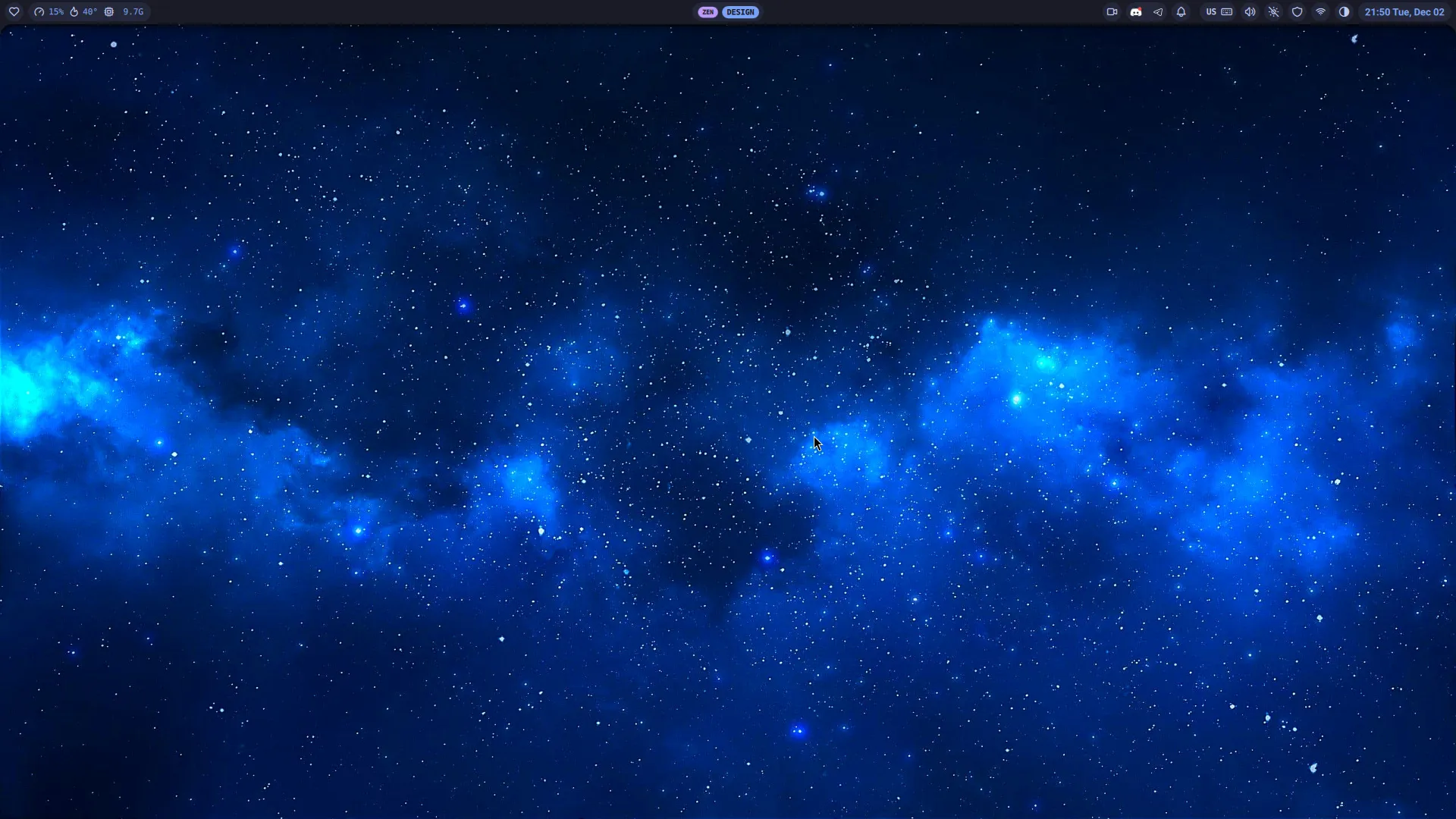
I also forgot what CachyOS came with initially for its Waybar component, but upon the recommendation (again) by my boyfriend, I searched for Noctalia shell and tried that out as well. It’s super cute with a nice GUI that helps with some of the customization stuff I’d want to set up on my own. And while its logo with an owl is cute, I eventually changed my Desktop to a photo of the night sky I found from WallHaven, which is integrated in the shell itself.
Niri also came built with Alacritty as its default terminal emulator, but I changed it to ghostty since I already use that in my work Macbook. No real reason why I would choose one over the other, I just like familiarity. And the ghost is cute. 👻
Learning about dead keys and why the US International keyboard layout has those
Knowing I do have to type accented characters due to my name, I wanted to know how to type ñ in my Linux machine. I already had that setup in my Windows machine, and it was already very doable with Mac, so I wanted to simulate it in Linux, too.
I found that I could set it up in my Niri config, so I went and followed the instructions in the wiki and added this to my ~/.config/niri/config.kdl:
input {
    keyboard {
        xkb {
            // US International Keyboard with AltGr Dead Keys
            layout "us"
            variant "altgr-intl"
        }
    }

    // ... more things
}
When I set this up initially, I didn’t know why the layout specifically needed to indicate the variant as altgr-intl instead of just intl (since this was what I was familiar with in Windows). But then I saw there was really a lot more keyboard layouts available out there, even for the us layout, and tried a bunch of them. With my keyboard setup right now1, the one that made most sense was the altgr-intl because the default keymap of my split keeb came with a button for it on the right part of the keyboard.
So now, by holding AltGr, then pressing ~ and n, I can type ñ!2
The main difference this has with how I used to do it before was I would’ve been able to press any Alt key on my keyboard, but this time I knew I had to specifically press the AltGr key because it didn’t work with the other one.3
More things to tinker with
Just noting below some of the other things I have yet to update and configure on my Linux setup, where maybe I’ll update this post once I’ve gone and changed them (if I do get to doing it haha)
Display fonts
I haven’t yet changed what the fonts are for my default usage and my monospace ones—I’ve settled with just keeping the defaults for now as I feel like I want to tinker with a bit more of the other stuff first and I deal with this last, considering I don’t particularly hate what currently is default.
Display cursor
I also want to change the cursor, since I know I can also do that in the niri config stuff, but after my initial look through some of the custom cursors used elsewhere, I still haven’t settled on what design to get.
Update 11 Dec 2025: I’ve customized my cursor theme! I wrote more about it here: Gold Ship now lives in my Linux machine as a cursor
Current bug: some missing emojis 😭 (fixed since 3 Dec 2025)
Update 3 Dec 2025: apparently, the way to fix this was to just… update
noctalia-shell! 😆 At some point while I was troubleshooting this on my own, I noticed the Latest version in the About tab for Noctalia Shell’s settings turned fromv3.4.0tov3.5.0. Once I rebooted my setup, all the emojis I was looking for were there! Woohoo!
I’m also still figuring out what may be a bug in my own setup of emojis on my Linux, as right now, when I try to open noctalia-shell’s emoji selector and try to search for the 👀 :eyes: emoji, I only get this:
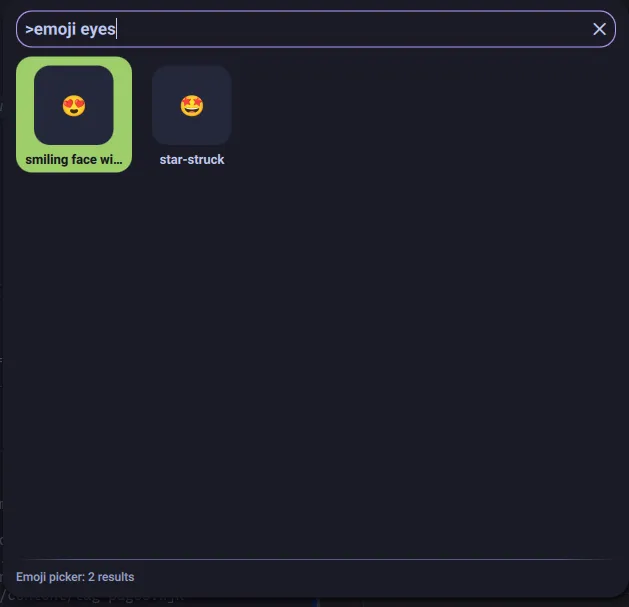
After some scouring online for a solution, my current hypothesis is this is due to my font emoji file not having the :eyes: emoji, and I had to swap it for another one. (That is very weird though, since I know this does exist as an emoji in that font file…) I still don’t know how to fix this, maybe I’ll update this post once I’ve figured it out.
(I also know I can ask for help in the Discord, but I did see someone else have a similar concern—also with icons—and I was hoping I could try to figure it out myself before I did ask for help… but maybe I’ll do it soon, one of these days haha)
Why switch now?
The main push for why I decided to switch to Linux now (instead of before or maybe even just more in the future) was because I didn’t want to deal with any more Windows shenanigans when building my website. That was mostly explained in this previous post of mine, where the reason why my website suddenly couldn’t build was due to some cross-environment setting that wasn’t initially obvious to me since it works fine on my (Windows) machine!4
Watching this video of Primeagen also kinda helped nudge me towards considering it, along with my boyfriend offering to help me set up my own Linux dual boot if I chose to push through with it.
I initially wasn’t subbed to this YouTuber, but I mostly just hear about it a lot also from whatever my boyfriend watches on our TV. Some of his takes on the industry and other quips on coding are amusing, and I partially get updates on what’s been happening in the “coding space“ through some of his videos. This is one of those videos, along with some others where he dunks on Microsoft for the things they do to keep essentially forcing AI down the throats of consumers.
The experience so far
I’m liking the change. I’m also happy I can play some games here. The only reason I’m still just keeping the Windows in the dual boot—aside as an initial backup in case my Linux boot failed—was so I could play some games that just work better on Windows. But with Steam Deck now making that less of a pipe dream since it’s built on Linux, it seems like I can eventually make my Linux setup my daily driver.
The last time I set up my own Linux PC was maybe around 10 years ago, when I was still in college and the only thing I had to myself was a PC that could maybe run some games with basic graphics, but nothing too fancy as we didn’t have the budget then. The OS I tried before was Lubuntu, which was essentially a lighter-weight version of Ubuntu, and it was also mostly to explore things I was learning while in college for Computer Science. I also learned more about open source software at the time, trying out different apps like Pidgin or LibreOffice and checking if I could replace my then-Windows setup with a purely Linux-based one.
Back then though, Linux didn’t feel as magical and as abundant as it does now; it felt more like you really had to be in the know to be able to understand it and fully appreciate it. With the improvements and iterations made now, and with more and more people contributing to open source (hoping one day I eventually get to do so, too) it’s amazing how many things people have accomplished over the years.
So now, I get to relive that initial curiosity of mine back in college, and I feel like I can fully realize it more now. But first, let me continue configuring this to the best of my ability (with some help along the way)—I need to make this desktop the cutest and coolest thing I ever have! 😝
Footnotes
-
My keyboard as of this writing is a Baseform keyboard. ↩
-
It’s actually a bit more like: (1) Hold the
AltGrkey on the right side, (2) THEN pressShift+(Layer:symbols)+"X"(becauseXin this case becomes the`key with the~tilde in the “symbols” layer) on the left side, (3) THEN pressnon the right side. Feels a bit like a chord in some other input tools, but I’m slowly getting the hang of remembering it. ↩ -
I also learned while writing this post that the reason they’re called “dead keys” is because it initially was based on how European typewriters work, which is why it seems to function similarly today on a keyboard with a digital interface. ↩
-
I didn’t see the error until I tried doing my website setup again on my work Mac, and honestly until now I don’t know what I did for that to suddenly happen, as it didn’t happen before. ↩